What “Pause Time” Means on LPB Piso WiFi
In the LPB Piso WiFi ecosystem, pause time is a customer-facing control that temporarily freezes a paid internet session so the remaining minutes don’t count down during breaks. For owners, it’s a configurable portal feature that can be enabled, limited, or turned off. For users, it’s typically a single button on the captive portal that shows up after connecting to the hotspot.
When implemented correctly, pause time:
- Preserves remaining paid minutes while you’re away
- Reduces refund requests due to short interruptions
- Improves perceived value and user satisfaction
Quick Start: How Customers Use LPB Piso WiFi Pause Time
Step 1: Join the hotspot
Open your device’s Wi-Fi settings and connect to the LPB Piso WiFi SSID advertised on the machine or signage.
Step 2: Open the captive portal
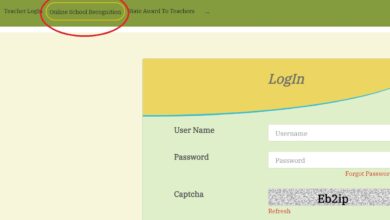
Most LPB-based systems redirect to a captive portal when you open any website. If not, type 10.0.0.1 into your browser’s address bar to reach the login page.
Step 3: Start a session (if you haven’t already)
Load time by inserting coins, scanning the QR for e-payment (if enabled), or entering a voucher code. The portal shows active session details such as remaining minutes and end time.
Step 4: Tap Pause Time
When you need to step away—take a call, grab food, or move locations—tap Pause Time. The session timer freezes and your remaining minutes are saved until you resume.
Step 5: Tap Resume Time
Return to the portal and hit Resume Time to continue using your remaining minutes. If the session screen isn’t visible, revisit 10.0.0.1, log back in (or re-enter the voucher), and resume.
Tip for users: Pausing doesn’t extend the calendar validity of a voucher that has a fixed expiry date. It only preserves your remaining minutes on that voucher while paused.
Owner View: How Pause Time Fits Into Your LPB Setup
LPB Piso WiFi software exposes pause time as part of the captive portal experience. Depending on your version and deployment, you’ll typically find related controls in the portal or voucher settings of your admin console.
Typical owner objectives with pause time
- Improve customer experience: Let people pause during short errands without losing minutes
- Reduce churn and disputes: Fewer “I lost my time” complaints
- Encourage longer purchases: Users buy bigger time blocks when they know they can pause
Common configuration knobs
- Enable/disable Pause Time: Turn the feature on or off globally
- Show/hide buttons for users: Decide whether the front-end displays Pause and Resume
- Voucher behavior: Choose if pausing is allowed on timed vouchers, data-based vouchers, or both
- Idle/timeout interactions: Coordinate pause behavior with idle timeout or automatic logout rules
- Multi-vendo and RADIUS setups: Ensure pause state is tracked correctly across machines when you centralize authentication
Practical note: If you run multiple vendos with centralized control, confirm that a paused state on one machine is recognized when a user reconnects elsewhere under the same voucher/account.
Detailed Walkthroughs
For customers: Step-by-step pausing and resuming
- Connect to the LPB Piso WiFi SSID
- If not auto-redirected, go to 10.0.0.1 in your browser
- Purchase or enter your voucher to start a session
- Look for Pause Time on the session screen and tap it
- When you’re ready, return to the same portal screen and tap Resume Time
If you switched devices or cleared your browser, re-enter your voucher or sign in again to access the session controls.
For owners: Enabling the feature and testing it
- Log in to the LPB admin dashboard
- Navigate to Portal or Voucher/Access settings (naming varies by build)
- Ensure Pause Time is enabled for the user interface you’re serving
- Create a test voucher with a small time allocation
- On a test phone, connect to the SSID, start the session, and verify that:
- Pause Time button appears
- Timer stops when paused
- Resume Time restores the session without losing minutes
- Idle timeout and logout rules don’t accidentally consume time while paused
Real-World Do’s and Don’ts
Do (for owners)
- Explain the feature on signage: “Visit 10.0.0.1 → Pause Time to save your minutes during breaks”
- Tune idle timeout: Ensure inactivity rules don’t fight with pause behavior
- Secure admin access: Change default passwords and restrict the admin interface to owner devices only
- Test with low-end phones: Some older devices handle captive portals differently; test the buttons on Android and iOS
- Train staff: If you run a sari-sari or café setup, make sure staff can help users find Pause and Resume
Don’t (for owners)
- Don’t rely on auto-pause by disconnection: Some misconfigurations can pause when Wi-Fi toggles off—this is confusing and abusable
- Don’t hide the portal URL: If redirect fails, users need 10.0.0.1 handy
- Don’t mix conflicting timers: Over-aggressive idle/session timeouts can undermine pause time
Do (for customers)
- Bookmark 10.0.0.1 so you can quickly pause and resume
- Resume on the same device when possible to avoid re-auth hassles
- Check voucher expiry dates: Pausing protects minutes, not calendar expiry
Troubleshooting Guide
Issue: “I can’t reach the portal”
- Try 10.0.0.1 directly in the browser
- Disable mobile data temporarily so your phone doesn’t route around the captive portal
- Renew your IP (forget the network and reconnect)
- Power-cycle your device and try again
Issue: “Pause button missing”
- The owner may have disabled pause time in the portal settings
- You might be on a different vendor firmware that uses voucher-only pausing or doesn’t support it for certain plans
- Refresh the portal or sign out/in—some UIs only show Pause after a session starts
Issue: “Paused, but minutes still went down”
- An idle timeout or keep-alive setting may be consuming time. Owners should align timeout values so pause cleanly freezes the session
- Confirm that you tapped Pause before closing the tab or turning off Wi-Fi
- If you roam to a different vendo, ensure centralized session tracking is configured correctly
Issue: “Auto-pauses when Wi-Fi is off”
- This is usually a misconfiguration—pause should be a deliberate user action, not triggered by disconnection. Owners should review hotspot policies so that toggling Wi-Fi or going out of range doesn’t silently alter session state
Issue: “Slow or unresponsive 10.0.0.1”
- Check signal strength and move closer to the unit
- Owners should update firmware, reboot the gateway, and verify DNS/walled-garden rules so the portal loads quickly
- Confirm you typed 10.0.0.1 (not 10.0.0.01 or 10.0.0.l)
Security, Fair Use, and Abuse Prevention
Pause time is intended to protect customers’ paid minutes during short breaks—not to be gamed. Owners can curb abuse by:
- Limiting consecutive pauses or total paused duration per session
- Binding vouchers to device MAC to reduce code sharing (balanced with user privacy and device churn)
- Avoiding auto-pause on disconnect which encourages toggling Wi-Fi to “freeze” time
- Auditing logs in RADIUS or the portal for unusual patterns (e.g., dozens of pauses per hour)
- Using VLANs and proper isolation so clients can’t reach admin services or neighboring devices
Implementation Notes for Technical Admins
- Many Piso WiFi stacks, LPB included, ride on hotspot frameworks that track session time against a voucher or account. Pause time works by halting the countdown of that session attribute while the customer is paused
- If you’re integrating with centralized servers/RADIUS, ensure that pause/resume events are correctly recorded so a resumed session restores the remaining time balance
- Review idle-timeout and keep-alive interplay. Over-strict timeouts can log users out and complicate resuming
- In multi-vendo deployments, confirm state persistence across nodes so a user can pause near one machine and resume near another as intended
Owner Checklist: Make Pause Time Work for You
- Enable pause time in your portal settings and test the UX end-to-end
- Post clear instructions: “Connect → open 10.0.0.1 → Pause/Resume”
- Tune idle/session timeouts to avoid conflicts with pausing
- Add basic anti-abuse limits (pause count or total paused minutes)
- Maintain firmware updates and monitor for portal slowness
- Train staff to handle common questions and FAQ scenarios below
FAQs
How long can a session remain paused?
That depends on the owner’s settings. Some portals allow indefinite pauses within a session’s calendar validity; others cap paused duration or total pause count to prevent abuse.
Can I pause multiple times in one session?
Usually yes, but owners may set limits on how often or how long you can pause to keep the network fair for everyone.
Does pausing extend my voucher’s expiry date?
No. Pausing protects remaining minutes, not the voucher’s calendar expiry. If a voucher expires tonight, pausing won’t carry it past that date.
Why can’t I find the Pause button after I reconnect?
You may need to sign back in at 10.0.0.1, re-enter your voucher, or resume on the same device. If the owner disables pause time, the button won’t appear at all.
My minutes dropped while I was paused—what happened?
Likely a timeout or policy conflict. The owner should review idle-timeout/keep-alive settings and centralized accounting so pause truly freezes the session.
Is it safe to pause and leave for hours?
It’s safe, but not always guaranteed to persist forever. Long pauses may hit portal limits or voucher calendar expiry. Resume sooner if possible.
Can owners disable pause time for specific plans?
Yes. Many deployments expose pause as a plan-level or voucher policy. Owners often allow it on time-based plans and restrict it on data-capped or promo vouchers.