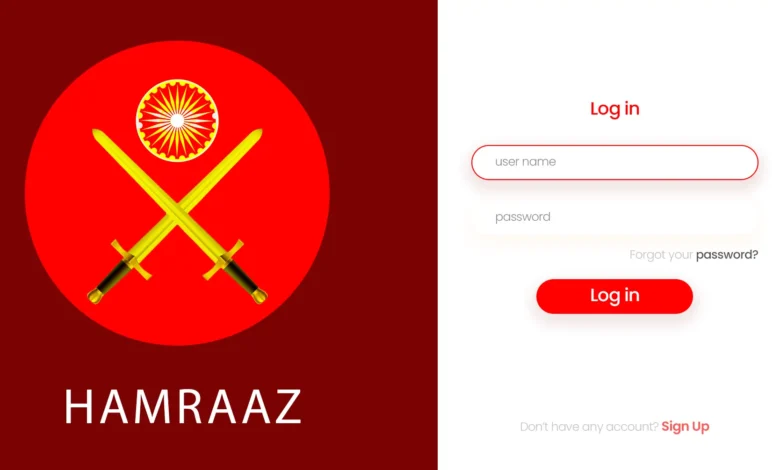
If you’re a serving soldier looking to view your payslip, download Form-16, check profile details, or use the pay calculator, Hamraaz personal login is the official way to do it online. This guide explains the full process—from first-time sign-up to daily login, from password resets to common error fixes—so you can navigate the portal confidently and securely.
What Is Hamraaz—and Who Can Use It?
Hamraaz is a secure web platform built for serving Indian Army personnel to manage pay and service information. It hosts role-based logins (RO, Unit, and Personal), offers self-service features like payslips and Form-16, and publishes notices relevant to soldiers. The Hamraaz personal login area is specifically for individual soldiers to access their own records.
Quick reminder: Hamraaz is not for civilians and is separate from pensioner services (which are handled on SPARSH). You’ll find a short section on SPARSH vs. Hamraaz later in this article.
Official Entry Points & Safe Access Practices
When you perform Hamraaz personal login, always use the official portal’s menu options (Home → Personal Login, Sign Up, Forgot Password). You’ll also see RO Login and Unit Login in the same menu—these are intended for Record Offices and units.
The personal login page itself highlights sensible security hygiene (use authorized links, keep your OS/apps updated, avoid public networks, don’t click unknown links, lock your device with a PIN, and log out after use). You’ll also see an advisory to keep your registered mobile number active with your Record Office, since that number is essential for OTP-based verifications.
Prerequisites for Hamraaz Personal Login
Before you sign in (or sign up), have the following ready:
- Service details and identity info: You’ll need information like PAN and other service identifiers when registering.
- Active mobile number with your Record Office: This is the number that receives OTPs for sensitive actions (password reset, some verification steps).
- A strong password: Use a long, unique password combining letters, numbers, and symbols; avoid re-using passwords from other sites.
- A modern browser/device: Keep your phone or PC updated. Old browsers and outdated Android versions often cause captcha/OTP issues.
Hamraaz Personal Login: Step-by-Step (Web)
Follow these steps whenever you log in on the web:
- Open the official Hamraaz portal and select Personal Login from the top menu.
- Enter your Login ID and password. Your Login ID is the one you created during sign-up (more on sign-up below).
- Complete the captcha exactly as shown (respect letter case and spacing).
- Submit to access your dashboard. In some flows, you may be asked to verify via OTP to confirm your identity—have your registered mobile handy.
- After use, log out properly, especially on shared devices.
Tip: If the captcha keeps failing, refresh it or switch networks (a flaky Wi-Fi may block image loads). Clearing the browser cache helps if you see an older page version.
First-Time Users: How to Sign Up
If you’re new to Hamraaz personal login, create your account first:
- Go to the Sign Up page from the top menu.
- Provide your details as requested. During sign-up, the portal validates core identifiers (you’ll often see PAN checks).
- Complete OTP verification on your registered mobile number (the one recorded with your RO).
- Set your password and finish registration.
- Return to Personal Login and sign in with your new credentials.
Good to know: Many units use PAN-based identifiers at registration time. Your actual Login ID is what you set during sign-up—so if you forget it, use Forgot Password to recover, because that flow will re-validate your identity against official records and your registered mobile.
Forgot Password? Reset It in Minutes
Password resets are straightforward:
- Click Forgot Password in the top menu.
- Confirm identity (you’ll be asked for details associated with your account, typically PAN and service info).
- Enter the OTP sent to your registered mobile number.
- Set a new password and login again from Personal Login.
If you don’t receive an OTP, check that your SIM is active, network is stable, and your registered number with the RO hasn’t changed. If it has, update it with your RO first—Hamraaz uses that number for verification.
What You Can Do After Login
Once you’ve completed Hamraaz personal login, you’ll typically see options like:
Payslip (PDF) & Form-16
- View and download monthly payslips.
- Download Form-16 for income-tax filing.
- PDF files are password-protected. Follow the on-screen hint for the correct PDF password format (it’s commonly derived from official identifiers). If a file won’t open, double-check that you’ve entered the format exactly as indicated (uppercase/lowercase matters).
Pay Calculator
Hamraaz offers a Pay Calculator tool that helps JCOs/OR work out pay fixation in scenarios like promotion/MACP. Use it as an indicative tool; the disclaimer reminds users to treat results as guidance and verify with the chain of command or finance sections if needed.
Profile & Service Information
Review and keep an eye on personal particulars that are visible in your dashboard. Cross-verify anything that looks out of date and route corrections via your Unit/Record Office as per procedure.
Downloading a Payslip—Step by Step
- Login via Personal Login.
- From your dashboard, go to Payslip / Form-16.
- Choose the month you need and download the PDF.
- When prompted, enter the PDF password exactly as hinted on screen (pay attention to capital letters, numbers, and sequence).
- Store the PDF securely—avoid sharing via unencrypted apps. If you must send it, use a protected channel and delete old copies afterward.
Troubleshooting:
- Wrong PDF password: Re-read the hint and confirm the format. Many typing mistakes happen with uppercase letters or transposed digits.
- File damaged or won’t open: Re-download using a stable connection. Try opening on another device with a standard PDF viewer.
- “Access denied” type errors: Log out, clear cache, and log in again; captcha/OTP freshness sometimes expires mid-session.
Common Errors—and How to Fix Them
- “Invalid PAN” during sign-up or reset: Confirm your PAN from official records and try again. If the error persists, your PAN/record mismatch might need RO intervention.
- Captcha failures: Refresh the captcha, switch to a different network, or use a different browser. Avoid auto-fill tools that may corrupt hidden fields.
- OTP not received: Check network, SIM validity, and RO-registered mobile number. If your number changed, update it with your Record Office first.
- Stuck or blank pages: Clear browser cache/cookies, disable aggressive ad-blockers, and try a desktop browser (Chrome/Edge/Firefox) or a current Android device.
- Account locked (too many attempts): Wait 15–30 minutes and retry, or use Forgot Password to reset with OTP.
Security Best Practices (Strongly Recommended)
The personal login page lists clear precautions that are worth turning into habits:
- Use only authorized links and the official Personal Login menu.
- Keep your device updated—OS and apps.
- Avoid public Wi-Fi for login or downloads.
- Don’t click unknown links or open unexpected attachments.
- Turn off Location/Wi-Fi/Bluetooth when not needed.
- Restart weekly, use a PIN/biometric lock, and log out after each session.
- Ensure your registered mobile number with the RO is active (for OTPs).
Pro tip: Never upload your payslip PDF to random “converter” sites. If you need to print, use a trusted, offline printer or a secure enterprise service.
Beware of Look-Alike Apps and Sites
Because “Hamraaz” and similar names are common, it’s easy to stumble upon unrelated apps on app stores or copycat websites that mimic the real portal. Remember:
- Hamraaz personal login for Indian Army soldiers is accessed through the official portal.
- If you see an app on a store with a similar name but unrelated description (e.g., mental-health or generic utility), it’s not for Indian Army pay/services.
- Avoid third-party APK sites and unofficial “helper” apps claiming to offer shortcuts to payslips—they’re a security risk and can steal credentials.
Hamraaz vs. SPARSH (For Pensioners)
A frequent doubt is whether pensioners should use Hamraaz. The answer is no—pensioners manage pensions via SPARSH. If you’re retired or transitioning, check SPARSH for PPO tracking, life certificate status, and pension services. Hamraaz remains focused on serving personnel.
When to Escalate to Your Record Office
Contact your RO if:
- Your registered mobile number has changed or is inactive.
- Your PAN/service details are not validating during sign-up or reset.
- You face repeated login/OTP failures despite trying the fixes above.
- You notice data discrepancies in your profile or pay information.
Keep your Army number, PAN, and personal particulars ready when you reach out—this speeds up verification.
Quick Checklist for a Smooth Hamraaz Personal Login
- Use the official portal and Personal Login menu.
- Keep your registered mobile active (for OTP).
- Memorize your Login ID and have a strong, unique password.
- Clear cache if pages look stale or captchas fail.
- Download payslips/Form-16 and store securely.
- Log out after use—especially on shared systems.
FAQs (Hamraaz Personal Login)
1) Is Hamraaz only for serving soldiers?
Yes. Hamraaz personal login is intended for serving personnel. Pension services are handled on SPARSH. If you’ve retired, use SPARSH for PPO/life certificate and pension workflows.
2) How do I change the mobile number that receives OTPs?
You must update your registered mobile number with your Record Office. Hamraaz uses that RO-recorded number, so changes made only on your handset won’t reflect in OTP delivery.
3) I forgot my password and can’t remember my Login ID. What should I do?
Use Forgot Password. The reset flow re-verifies your identity (commonly via PAN and OTP to your RO-registered mobile). After resetting, note your Login ID for future logins.
4) Why does the portal keep rejecting my captcha?
It’s often a rendering or cache issue. Refresh the captcha, switch from mobile data to a stable Wi-Fi (or vice-versa), clear your browser cache, or try a current desktop browser.
5) My payslip PDF won’t open—what am I doing wrong?
Ensure you’re entering the exact password format hinted on screen (case matters). If the file seems corrupted, re-download with a stable connection and open with a standard PDF viewer.
6) Can I use Hamraaz on iPhone?
You can access the web portal from Safari/Chrome on iPhone for personal login tasks. If you prefer mobile apps, verify authenticity via the official portal before installing anything. Avoid third-party APKs and look-alike apps.
7) What’s the difference between RO Login, Unit Login, and Personal Login?
- Personal Login: for individual soldiers (your payslip, Form-16, profile, etc.).
- Unit Login: for authorized unit users.
- RO Login: for Record Office workflows.
Each area has distinct permissions; use Personal Login for your own account.