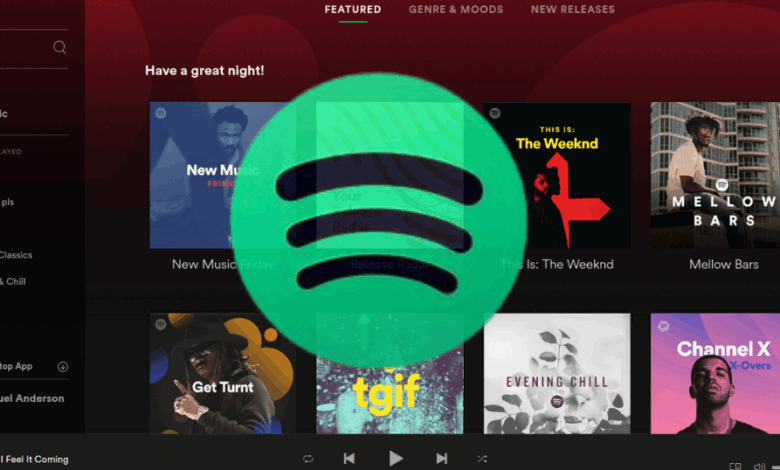
The Spotify Web Player is the fastest way to stream music, podcasts, and audiobooks from any modern browser without installing software. It brings Spotify’s “music for everyone” promise to school computers, shared desktops, and locked-down work machines where installs are a pain. In this guide, you will learn how the web player compares to the desktop and mobile apps, which browsers it supports, how audio quality works, what Premium unlocks, and the practical tips power listeners use every day.
What Is the Spotify Web Player?
The Spotify Web Player is a browser version of Spotify that runs at open.spotify.com. It mirrors much of the core experience you get in the apps: search, artist pages, albums, playlists, podcasts, audiobooks, your Library, the Play Queue, and device switching through Spotify Connect. If you are on a managed computer or you need a quick listen on a borrowed device, the web player is the most convenient entry point into the Spotify ecosystem.
Why choose the web player?
- No installation required, ideal for shared or IT-managed computers
- Works across major desktop browsers
- Quick sign-in to access your library, playlists, and listening history
- Great for jumping into a Jam, collaborating on playlists, or checking an album on the fly
Supported Browsers and System Basics
Spotify Web Player supports current versions of the major desktop browsers: Chrome, Firefox, Edge, Opera, and Safari. If playback fails or you see a protected content message, it usually means your browser needs to enable DRM. Spotify relies on Widevine DRM in most browsers to securely stream licensed audio. Keeping your browser up to date also solves many glitches.
Quick compatibility checklist
- Use the latest Chrome, Firefox, Edge, Opera, or Safari
- Enable playback of protected content if prompted
- If something looks off, try an incognito window or a different browser profile
- On some restricted school or office networks, streaming domains may be blocked, so check with your administrator
Audio Quality on the Web Player
Sound quality on the web player is simple and fixed, which many users appreciate because there is nothing to tune:
- Free tier streams in AAC at 128 kbit/s in the web player
- Premium streams in AAC at 256 kbit/s in the web player
On desktop and mobile apps, Premium can go up to 320 kbit/s, but the browser version caps at 256 kbit/s for Premium and 128 kbit/s for Free. Those bitrates are efficient and sound good for casual listening, especially on laptop speakers or office headphones. If you need the highest possible quality or plan to use premium DACs and monitors, the desktop app is the better choice.
Free vs Premium on the Web Player
Both Free and Premium accounts can use the Spotify Web Player, but the experience is different.
What you get on Free
- Access to the full catalog with ads
- Limited skips and some sequencing constraints on certain playlists
- Web player audio quality up to 128 kbit/s
- Ability to join a Jam session hosted by a Premium friend
- Lyrics on many songs when available
What you get on Premium
- Ad-free music
- Full control of skips and playback order on demand
- Web player audio quality up to 256 kbit/s
- Host Jam sessions for friends
- Enhanced queue controls and recommendations
- Access to the newest features as they roll out
- Time-limited audiobook listening as part of many Premium plans
Note on downloads: Offline downloads are not available in the web player. If you need offline listening, use the desktop or mobile apps. The web player is designed for online streaming.
New and Noteworthy Features in 2025
Spotify continues to add creative tools that benefit playlist lovers and tastemakers. Several recent enhancements are worth knowing about, even if availability varies by platform during rollouts.
Mix: custom transitions between tracks
Spotify introduced a playlist “Mix” tool that lets Premium users create seamless transitions between songs. You can enable automatic transitions or dial in manual settings like fade, rise, EQ touches, and transition length. The editor shows waveforms, BPM, and key to help maintain flow. Rollouts start on the apps and may reach the web experience over time, so check your account to see if Mix appears for you.
A more helpful queue and playback controls
The queue design has been refreshed to make it easier to manage what plays next. You will see clearer controls for Shuffle, Smart Shuffle, Repeat, and even a sleep timer on supported platforms. The web player includes the Play Queue with drag-and-drop to reorder tracks, remove items, and jump ahead.
Social listening: Blend and Jam
- Blend creates a shared playlist for you and a friend. It analyzes both listening profiles and merges tastes into one feed that refreshes over time.
- Jam lets a group join the same session and add tracks to a shared queue in real time. Premium is required to host a Jam, but Free users can join when invited. It is perfect for study sessions or small gatherings where everyone wants a turn at the queue.
How to Use Spotify Web Player Like a Pro
Let’s cover the everyday moves that make the web player fast and efficient.
Start listening in three steps
- Visit open.spotify.com and sign in.
- Use the search bar to find an artist, album, playlist, podcast, or audiobook.
- Click Play, then open the queue to see what’s up next.
Manage the Play Queue
Open the queue from the Now Playing area to see upcoming tracks. You can:
- Drag tracks to reorder
- Remove tracks you no longer want
- Clear the queue to start fresh
- Peek at Spotify’s recommendations that appear after your current list ends, then accept or decline them
Use Spotify Connect from the browser
With Spotify Connect, the web player can hand off playback to a phone, desktop app, smart speaker, TV stick, or game console on your account. Click the device icon near the volume control to see available devices. Select the speaker you want, and your browser becomes a remote, so your laptop can stay silent while sound plays from the room’s speaker.
See lyrics while you listen
On many tracks, you can open lyrics from the Now Playing view. Availability varies by song and region. If you do not see lyrics on the web player for a specific track, try a different track or check again later.
Keyboard shortcuts that save time
The web player supports helpful shortcuts so you can keep your hands on the keyboard:
- Go to Search: Ctrl or Cmd + L
- Open Now Playing: Alt + Shift + J
- Go to Liked Songs: Alt + Shift + S
- Navigate Home, Artists, Albums: Alt + Shift + H/3/4
- Open Preferences: Ctrl or Cmd + ,
Tip: press Ctrl or Cmd + / in the app to view available hotkeys on your system.
Troubleshooting: Fix Common Web Player Issues
Most web player issues fall into a few predictable buckets. Work through these steps to get back to your music quickly.
“Playback of protected content is not enabled”
This message points to DRM. Enable Widevine or “Protected content” in your browser settings. Then refresh the page. If it persists:
- Update your browser to the latest version
- On Chrome, visit
chrome://componentsand check if Widevine is updated - Try a private window to rule out extensions
- If you are on a work or school network, ask IT whether streaming services are blocked
Playback controls are grayed out, or songs stop after a few seconds
- Sign out and back in
- Clear cookies for open.spotify.com
- Update or re-enable your DRM component
- Disable tracker or script-blocking extensions for the Spotify site
- Try another supported browser to isolate the issue
Lyrics missing on specific tracks
Lyrics do not exist for every song and can vary by region and device. Try another track, or check again later. If lyrics used to be there and disappeared, it is often a catalog rights update that resolves in time.
Web Player vs Desktop and Mobile: Which Should You Use?
Choose the web player when you:
- Cannot install software on your device
- Need quick access from a lab, library, or friend’s computer
- Want to control another device with Spotify Connect
- Prefer a minimal interface that just works in your browser
Choose the desktop or mobile app when you:
- Need the highest audio quality or local file support
- Want offline downloads for flights or commutes
- Use advanced features as they roll out to apps first
- Prefer global media keys or deeper OS integrations
Many listeners use both. The browser is for workdays and quick checks, while the desktop or phone takes over for serious listening.
Power Tips for Playlists and Discovery
- Build folders and sub-folders in the desktop app for deep organization. The web player will reflect your structure for easy navigation.
- Create collaborative playlists with friends, then manage the queue from your browser while the room listens on a smart speaker via Connect.
- Explore Made For You mixes and Release Radar in the browser to keep discovery going even when you cannot install the app.
- When the Mix transitions feature appears for your account, try it on a dance or workout playlist to keep energy consistent between tracks.
Privacy and Data Considerations
If you are on a shared or public computer, always sign out when you are done. Avoid saving your password in the browser. Private session mode is available in Spotify to prevent your activity from influencing recommendations for a period of time. If your organization blocks streaming, the web player may not load at all, which is expected behavior on tightly managed networks.
Quick-Start: Your First Hour on Spotify Web Player
- Sign in at open.spotify.com.
- Tap the search bar and type your favorite artist.
- Open the latest album and hit Play.
- Click the device icon, choose a speaker, and hand off with Spotify Connect.
- Open the queue to reorder a few tracks.
- Add the best songs to a new playlist with a title and description.
- Invite a friend to a Jam session later so everyone can add songs.
- Explore Liked Songs and Made For You to fill out your library.
You can do all of this without ever installing the desktop app.
Should You Upgrade to Premium if You Only Use the Web Player?
If you mainly listen in a browser and do not mind occasional ads, Spotify Free is very capable. Upgrade to Premium if you want ad-free listening, higher audio quality in the web player, full control over skips and playback order, the ability to host Jams, and early access to new features. Watch for seasonal Premium promotions that can be a low-risk way to try it.
Conclusion
Spotify Web Player truly makes “music for everyone” feel real. It removes installation friction, runs on the browsers people already use, and still delivers powerful features like the Play Queue, lyrics on many tracks, Connect device switching, and modern discovery playlists. Add Premium and you get more control, better quality in the browser, and access to the newest listening tools. Whether you are in a campus lab, on a hotel computer, or at your desk at work, the Spotify Web Player is a reliable way to keep your soundtrack going.
FAQs
Can I download songs for offline listening in the Spotify Web Player?
No. The web player does not support offline downloads. Use the desktop or mobile apps for offline listening.
Does the web player support the same audio quality as the desktop app?
Not exactly. In the browser, Free streams up to 128 kbit/s AAC and Premium up to 256 kbit/s AAC. The desktop and mobile apps support higher bitrates for Premium.
Which browsers work with the Spotify Web Player?
Current versions of Chrome, Firefox, Edge, Opera, and Safari are supported. Keep your browser updated and enable playback of protected content if prompted.
Why do I see “Playback of protected content is not enabled”?
That message means your browser’s DRM module, typically Widevine, needs to be enabled or updated. Turn it on in settings, update the browser, then refresh.
Can I see lyrics in the web player?
Yes on many tracks, but not all. Lyrics availability depends on the song and region. If you do not see lyrics, try a different track or check again later.
What is Spotify Connect and can I use it from the web player?
Spotify Connect lets you control playback on other devices, like smart speakers or your phone. From the web player, click the device icon to pick a target speaker and your browser becomes the remote.
What recent features should I know about in 2025?
Spotify has been rolling out a Mix tool for seamless transitions between tracks for Premium users, plus a refreshed queue and social features like Blend and Jam. Availability can vary by platform during rollouts.